

What is the Microsoft Windows 11 Emergency Update?
Microsoft has released critical emergency updates for Windows 11 in January 2026, addressing a series of issues that emerged from the January Patch Tuesday security update (KB5074109). The situation escalated quickly, requiring multiple out-of-band (emergency) patches including KB5077744, KB5077797, and most recently, KB5078127 on January 24, 2026. This comprehensive guide explains what happened, whether these updates are safe, and what you need to do to protect your system.

Top Online Digital Marketing Courses in India
If you are exploring online digital marketing courses in India in 2026, you’re entering one of the fastest-growing, most future-proof…


Digital Marketing Course Topics: Complete Syllabus for Beginners in 2026
If you want to learn digital marketing but feel confused about where to start, this guide will help you. Most beginners…

Digital Marketing Certification: A Smart Step for Career and Business
Today, every business wants to grow online. From small shops to big companies, everyone is using the internet to connect…

SEO Agency in USA for Small Businesses in 2026
In 2026, every small business needs a strong online presence to grow faster and reach more customers. A professional SEO…


AI SEO in 2026: Top Strategies to Rank Higher on
AI SEO is changing the future of digital marketing. Today, businesses are using AI powered SEO strategies to improve Google…
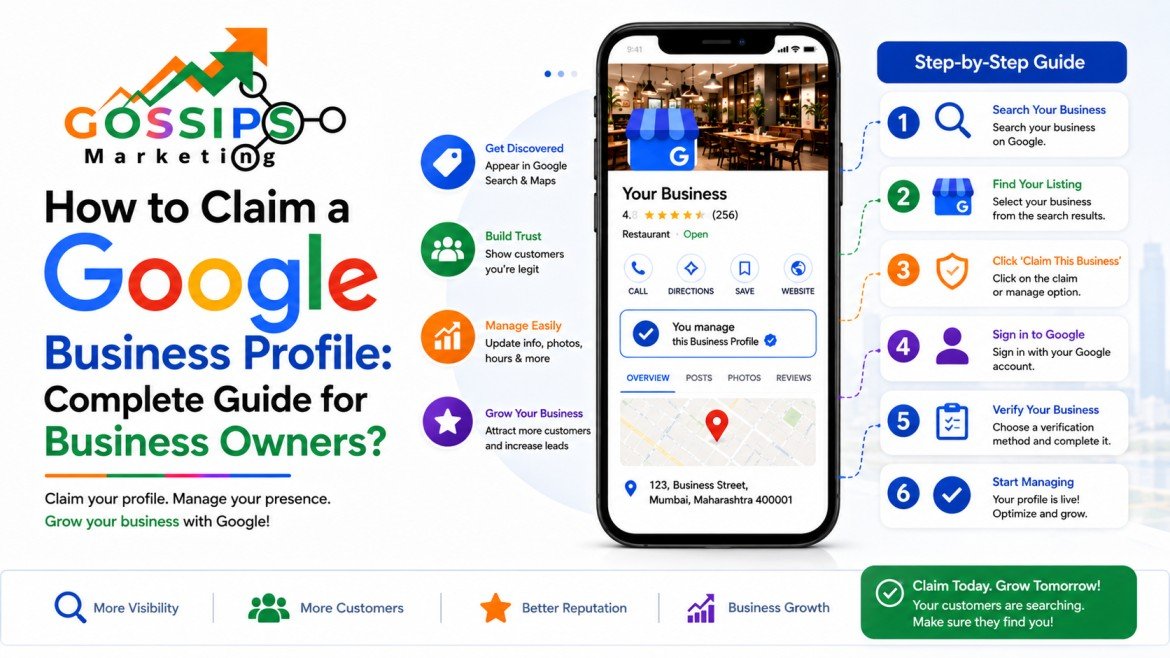
How to Claim a Google Business Profile: Complete Guide for
Introduction When someone searches your business name or “service + near me,” your Google Business Profile (GBP) is often the first…
The January 2026 Windows 11 Update Crisis: What Went Wrong?
On January 13, 2026, Microsoft released KB5074109, a mandatory security update containing 114 security fixes, including three zero-day vulnerabilities affecting Windows 11 versions 25H2 and 24H2. While the update successfully patched critical security issues related to privilege escalation, remote code execution, and Secure Boot vulnerabilities, it inadvertently introduced multiple serious problems.
The update moved systems to Build 26200.7623 (for 25H2) and Build 26100.7623 (for 24H2). Users can verify their update status by checking Settings > System > About > Specification to view their build number.
Critical Issues Reported After KB5074109
Black Screen of Death (UNMOUNTABLE_BOOT_VOLUME Error)
The most severe issue affects a limited number of devices that become unable to boot after installing KB5074109. These affected PCs display the BSOD with stop code UNMOUNTABLE_BOOT_VOLUME (Error 0xED). Microsoft acknowledges this issue is limited to specific hardware configurations, with no reports from virtual machines. Affected devices require manual recovery using Windows Recovery Environment (WinRE) or clean reinstallation via ISO.

Outlook Classic and Cloud App Failures
A widespread issue causes Outlook Classic with POP accounts and PST files to become unresponsive or crash. This problem also affects third-party applications relying on cloud services like OneDrive and Dropbox. Users reported being unable to open Outlook without restarting their system multiple times.
Additional System Problems
- Sleep Mode (S3) Not Working: Older PCs unable to enter sleep mode
- File Explorer Customization Broken: desktop.ini files corrupted
- Remote Desktop Connection Failures: Azure Virtual Desktop sessions failing
- Citrix Remote Desktop Issues: Incompatibility with Citrix Director
- Shutdown Problems: Shutdown feature not functioning properly (primarily 23H2)
Is the New Microsoft Windows 11 Update Safe?
Short Answer: Yes, for most users, but with important caveats.
The Windows 11 emergency updates are safe for the vast majority of users. The original KB5074109 contains critical security patches that address three zero-day vulnerabilities already being exploited in the wild. Uninstalling these security patches would leave your system vulnerable to active cyber threats.
However, you should be aware of:
- Limited Boot Issues: A small percentage of devices experience black screen boot failures, primarily on specific hardware configurations
- Application-Specific Problems: Cloud-dependent applications may experience issues
- Hardware Compatibility: Older systems with S3 sleep mode may be affected
Microsoft has classified the boot issue as “limited,” meaning it affects a small subset of devices. If your PC is functioning normally after installing the January updates, there is no safety concern.
How to Check If You Have the January 2026 Update
- Click the Start menu
- Open Settings
- Navigate to System > About
- Scroll down to Specifications
- Look at the OS Build number
- If it shows 26200.7623 (25H2) or 26100.7628 (24H2 with KB5078127), you have the latest updates
Build numbers 26200.7623 or 26100.7623 indicate you have KB5074109 but not the latest emergency patch.
Microsoft’s Emergency Patches: KB5077744, KB5077797, and KB5078127
KB5077744 (January 17, 2026 – Optional)
- Fixed: Azure Virtual Desktop Remote Desktop connection failures
- Scope: All supported Windows versions
KB5077797 (January 17, 2026 – Optional)
- Fixed: Windows 11 23H2 shutdown feature not working
- Scope: Windows 11 23H2 only
KB5078127 (January 24, 2026 – Mandatory)
- Fixed: Outlook Classic crashes and app unresponsiveness
- Includes: All fixes from KB5077744 and additional cloud service fixes
- Affects: Windows 11 25H2 and 24H2
- Includes AI component updates for improved system stability
The latest emergency patch, KB5078127, is mandatory and will download automatically. After installation, systems move to Build 26100.7628 or 26200.7628.
How to Update Microsoft Edge and Microsoft Store in Windows 11
If your Edge browser or Microsoft Store require updates after installing Windows 11 KB5074109:
Updating Microsoft Edge:
- Click the three-dot menu icon in Edge
- Select Settings
- Navigate to About Microsoft Edge
- Edge automatically downloads and installs updates
- Click Restart if prompted
Updating Microsoft Store:
- Open Microsoft Store
- Click your account icon (top right)
- Select Settings
- Choose App settings
- Enable App updates
- Click Get updates
How to Stop or Control Microsoft Windows 11 Updates
Important Note: While you can pause or delay updates, Microsoft eventually makes major version updates mandatory. KB5074109 and KB5078127 are mandatory security updates containing critical patches.
Method 1: Temporarily Pause Updates (Recommended)
- Open Settings
- Click Windows Update
- Select Pause updates (pauses for up to 5 weeks)
- Updates resume automatically after the pause period
Method 2: Permanently Disable Windows Update Service (Advanced)
- Press Windows Key + R
- Type services.msc
- Scroll to Windows Update
- Right-click and select Properties
- Set Startup type to Disabled
- Click Apply > OK
Warning: Disabling Windows Update removes critical security protections. This is not recommended for most users.
Method 3: Use Group Policy (Pro/Enterprise Only)
- Press Windows Key + R
- Type gpedit.msc
- Navigate to Computer Configuration > Administrative Templates > Windows Components > Windows Update
- Double-click Configure Automatic Updates
- Select Disabled
Method 4: Registry Modification (Advanced)
- Press Windows Key + R
- Type regedit
- Navigate to HKEY_LOCAL_MACHINE\SOFTWARE\Policies\Microsoft\Windows
- Create new key named NoAutoUpdate and set value to 1
How to Fix the Black Screen of Death (UNMOUNTABLE_BOOT_VOLUME)
If you encounter the UNMOUNTABLE_BOOT_VOLUME error after the Windows 11 January 2026 update:
Method 1: Use Windows Recovery Environment
- When the black screen appears, press the power button repeatedly to restart
- Press F8 or F11 during boot to access Repair Your Computer
- Select Troubleshoot
- Choose Advanced options
- Select System Restore or Automatic Repair
Method 2: Run CHKDSK from Command Prompt
- Access Advanced Startup Options
- Select Command Prompt
- Type:
chkdsk /f C: - Restart when complete
Method 3: Repair Boot Record
From Command Prompt:
textbootrec /scanos
bootrec /rebuildbcd
bootrec /fixboot
bootrec /fixmbr
Method 4: Clean Install Windows 11
If recovery fails:
- Download Windows 11 Media Creation Tool
- Create bootable USB drive
- Boot from USB
- Select Repair your computer if boot issues persist, or perform clean installation
Frequently Asked Questions (FAQ)
Q: Should I install the Windows 11 January 2026 emergency updates?
A: Yes. These updates contain critical security fixes for three zero-day vulnerabilities. The benefits of security protection significantly outweigh the limited risks. Most users will experience no issues.
Q: Is Microsoft forcing Windows 11 updates?
A: Major security updates like KB5074109 and KB5078127 are mandatory and install automatically. You cannot permanently prevent these updates, though you can pause them temporarily for up to 5 weeks.
Q: What if I can’t access the boot menu to recover?
A: If automatic recovery fails, use the Windows 11 Media Creation Tool to create a bootable USB drive for clean installation. This is the most reliable solution for severe boot issues.
Q: Will I lose my data if I use Windows Recovery or clean install?
A: Windows Recovery typically preserves user data. Clean installation via Media Creation Tool preserves data if you choose “Keep my files.” However, backup critical data first as a precaution.
Q: How can I prevent boot issues before they happen?
A: Maintain system backups, keep drivers updated, ensure adequate free disk space (at least 10GB), and run periodic maintenance utilities like CHKDSK and system file verification (SFC).
Q: Are older Windows 11 versions (23H2, 22H2) affected?
A: Boot issues are primarily limited to 25H2 and 24H2. Other versions receive separate cumulative updates (KB5073455 for 23H2) with different fixes.
How Gossips Marketing Helps You Stay Protected?
At Gossips Marketing, your trusted digital marketing agency based in Jaipur, we understand that technology security affects business productivity. Our team stays current with the latest Windows updates, security patches, and IT best practices to ensure your systems remain secure and operational.
We provide comprehensive guidance on:
- System security and update management
- Digital infrastructure protection
- Technology consulting for businesses
- Cybersecurity awareness for team training
- Proactive IT solutions for MSMEs and startups
Whether you’re managing a small business network or enterprise systems, keeping your Windows 11 installations updated with critical security patches is essential. While the January 2026 updates presented challenges for some users, the security benefits far outweigh the risks.
Have you experienced issues with recent Windows updates? Share your experience in the comments below. If you need professional guidance on system security, IT management, or have questions about protecting your business technology, contact Gossips Marketing for expert consultation.