Introduction
When someone searches your business name or “service + near me,” your Google Business Profile (GBP) is often the first thing they see—sometimes even before your website. If you haven’t claimed or verified it, you’re missing out on calls, messages, reviews, and walk-in customers.
There’s a big difference between creating a new Google Business Profile and claiming an existing one. Creating is for businesses that truly don’t appear on Maps or Search yet. Claiming is for when Google (or someone else) has already created a listing, and you now need ownership access.
A properly claimed, verified profile is a major local SEO asset: it helps you rank better in Google Maps, appear in the local 3-pack, and build trust with customers who check reviews and basic details before contacting you.
Read Blog :- 40+ Business Listing Websites to Grow Your Local Business
Many business owners struggle with ownership and admin access—previous employees, agencies, freelancers, or even competitors may be holding the keys to your profile. The good news: Google has a clear process to request and transfer ownership.
What Does “Claim This Business” Mean in Google Business Profile?
When you open a business on Google Maps or Search and see “Claim this business” or “Own this business?”, Google is telling you the listing exists but isn’t actively managed by a verified owner in your account.
- Claim ownership feature: This is Google’s built-in process for you to confirm you’re authorized to manage that business and gain access to edit details, reply to reviews, and run updates.
- When Google shows “Own this business?” You’ll see this link on profiles that are unclaimed or where you’re not recognized as an existing manager.
- Auto-generated listings: Google often auto-creates GBP listings using data from Maps, third‑party directories, user contributions, and public records—especially for physical locations like restaurants, clinics, and shops.
In short, if your business appears on Google without you having set it up, you probably need to claim it, not create a new one.
Why Businesses Need to Claim Their Google Business Profile
Access to Business Information
Once you claim and verify your Google business listing, you can edit core details such as business name, address, phone number, website, hours, categories, and services. This accuracy directly influences whether customers can reach you easily.
Control Over Reviews
A claimed profile lets you reply to customer reviews, add clarifications, apologize, or thank people publicly. That two-way communication is a strong trust signal and can turn a neutral or negative experience into a positive one.
Better Google Maps Visibility
Google uses your Google Business Profile data as a key ranking factor for local SEO and Map Pack results. Complete, accurate, and active profiles tend to perform better for searches like “best dentist near me” or “plumber in Jaipur.”
Protection Against Unauthorized Changes
When you’re the verified owner, you’re more protected against fake edits, spam updates, or incorrect changes from random users. You’ll get notifications for suggested edits and can approve or reject them.
Situations Where You May Need to Claim a Google Business Profile
You might need to start a google business ownership request in situations like:
- A previous employee created the listing using their personal email.
- An old marketing agency still has primary ownership and never handed it over.
- Google auto-generated a Google Maps business listing without your involvement.
- There are duplicate business listings for the same location.
- The business has changed ownership and you need a google my business ownership transfer.
- You lost access to the old Gmail account that created the listing.
- A freelancer set it up using their own email instead of your business email.
- You run a franchise or multi-location business and need central access control.
- A competitor or unknown user claimed the listing first (yes, it happens).
- You are rebranding or relocating and need to update NAP and branding details.
In all of these cases, the solution is to claim Google Business Profile access properly instead of creating a new duplicate.
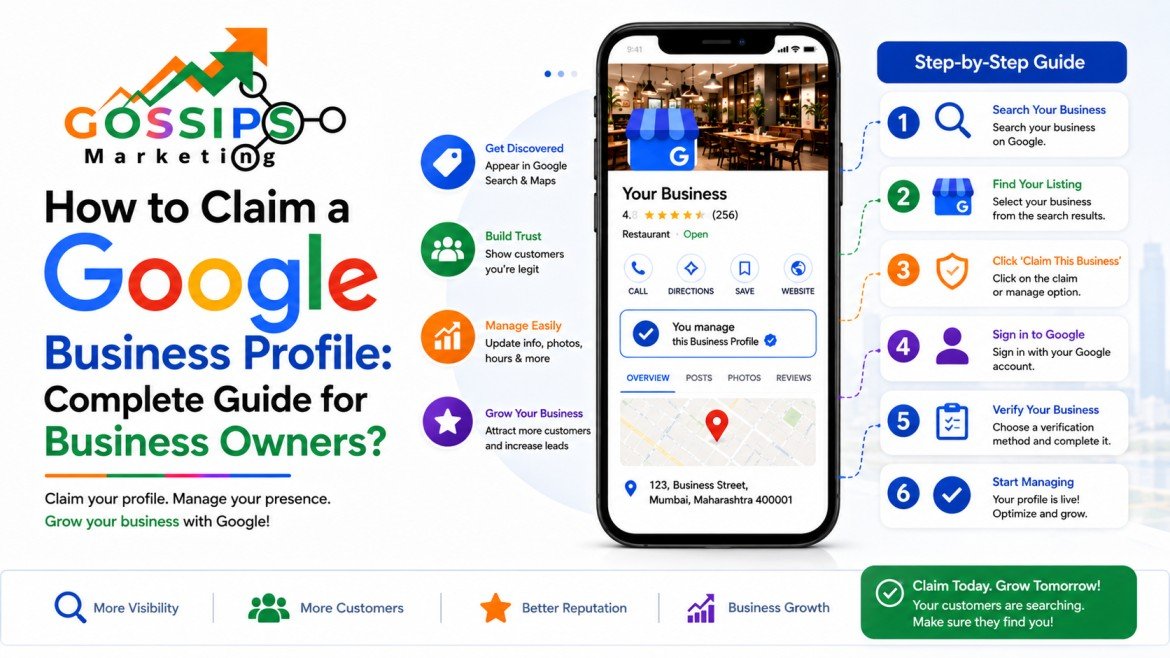
How to Claim a Google Business Profile Step by Step
Step 1 – Search Your Business on Google
Search your business name plus city on Google Search or open Google Maps and look for your listing. Make sure it’s actually your location and not a similarly named business.
Step 2 – Click “Own this business?” or “Claim this business”
On the profile panel, you should see a link like “Claim this business” or “Own this business?” Click it, then choose Manage now or Continue.
Step 3 – Request Ownership Access
Google will show a message such as “Someone else may manage this Business Profile” if it’s already claimed. You’ll then see a Request access button and a short form to fill in your role, contact details, and level of access (usually Owner).
Step 4 – Wait for Existing Owner Response
The current profile owner receives an email almost immediately and has around 3 days to approve, deny, or ignore your request. You’ll receive an email update for whichever action they take.
Step 5 – Complete Verification Process
If ownership is granted or you’re allowed to claim an unverified listing, Google will ask you to complete google business profile verification by one of the available methods (phone, email, video, or postcard).
Google Business Profile Verification Methods
Google doesn’t offer every method to every business; options depend on category, risk level, and past changes.
Common methods include:
- Phone or SMS verification: Google calls or texts a code to your business phone number; you enter the code in your profile.
- Email verification: For some profiles, you can receive a code at your business email address.
- Video verification (recording): You record a short video showing your location, signage, and business operations, then upload it for review.
- Live video call verification: You join a live video call with a Google support rep and walk through your premises, signage, or equipment.
- Postcard verification: Google mails a postcard with a code to your business address, which usually arrives within about 14 days.
Once the code or video is approved, your google maps business claim is complete.
What Happens After Sending an Ownership Request?
After you submit an ownership request:
- You get an email confirmation and can check status from your GBP dashboard.
- The current owner has roughly 3 days to respond.
- If they approve, you get access; if they deny, you’ll be notified and may need to appeal or provide more proof.
If there is no response, Google may allow you to verify the profile yourself after the waiting period, especially if you can prove clear association with the business (website, domain email, documents).
How Long Does Google Take to Transfer Ownership?
- Initial request response: About 3 days for the current owner to approve/deny.
- Verification timing: Phone/email can be instant, while postcard or video may take up to 10–14 days.
- Primary ownership transfer: Once added as an owner, there is a 7‑day holding period before full primary-owner capabilities are unlocked.
Factors like inconsistent business information, frequent address changes, or suspected spam can slow down approval.
Common Problems While Claiming a Google Business Profile
Some issues you might face during a google business profile claim:
- Ownership request rejected: The current owner denies your request—often because they don’t recognize you, or there is a dispute.
- Verification failed: Wrong code, expired postcard, or video not showing enough proof can cause verification failure.
- Video verification not approved: If your video doesn’t clearly show signage, location, and business operations, Google may request another attempt.
- Suspended profile during claim: Inconsistent NAP data, prohibited categories, or suspicious edits can trigger a suspension while you are trying to claim.
- Duplicate listing errors: Creating a new listing instead of claiming can lead to duplicates and possible suspensions.
How to Recover a Claimed Google Business Profile
If you’ve lost access, here are your main options:
- Recovering access from old email: Try account recovery for the old Gmail or look for backup admin emails that still have access.
- Appealing ownership disputes: If the current owner refuses but you’re the real business owner, you can use Google’s support forms to provide proof (license, utility bills, domain email, etc.).
- Contacting Google support: For service-area businesses or complex disputes, you may need to contact support directly via the Google Business Profile Help page.
This is essentially a recover Google Business Profile access process rather than starting from scratch.
Local SEO Benefits After Claiming Your Business Profile
Once your listing is properly claimed and optimized:
- Better Google Maps rankings: Complete, verified profiles with correct categories, photos, posts, and reviews tend to rank higher in map results and local packs.
- Increased calls and leads: More visibility means more phone calls, messages, website visits, and in‑store visits from local customers.
- Improved trust signals: Verified badges, fresh photos, prompt review responses, and up‑to‑date information make you look more credible.
- Higher visibility in local searches: For “near me” and geo‑based searches, Google heavily depends on GBP data to decide which businesses to show.
That’s why local SEO Google Business Profile optimization is a core part of any local marketing strategy.
Tips to Secure Your Google Business Profile
Once you claim Google Business Profile ownership, protect it like any other critical asset:
- Add multiple admins (owners/managers) that you trust so you’re not dependent on a single login.
- Use a business domain email (like yourname@yourdomain.com) instead of personal Gmail for long‑term control.
- Avoid sharing primary ownership casually with agencies or freelancers; give them manager access instead.
- Maintain consistent NAP (Name, Address, Phone) across your website and r to reduce verification and suspension issues.
How Professional GBP Management Helps Businesses
If you’re busy running operations, professional google business profile management can help you:
- Regularly optimize categories, descriptions, photos, and services.
- Post updates, offers, and events consistently to keep the profile active.
- Manage and respond to reviews in a structured, brand-safe way.
- Fix citation issues and clean up duplicates across directories.
- Monitor and report spam edits or fake reviews.
- Assist with verification, re‑verification, and ownership changes when needed.
Conclusion
Claiming and verifying your Google Business Profile is not just a technical step—it’s basic digital ownership for any modern business. With correct ownership, you control how your business appears on Google, protect your brand, and unlock better local SEO, more leads, and stronger customer trust.
Don’t wait until there’s a dispute, suspension, or lost access issue. Start your google business profile claim as early as possible and keep your access, admins, and information clean and secure.
FAQ: Google Business Profile Claim & Ownership
1. How do I claim my Google Business Profile?
Search your business on Google or Google Maps, open the listing, click “Claim this business” or “Own this business?”, select “Manage now,” and follow the prompts to request access and complete verification.
2. What if someone else owns my business listing?
Submit a google business ownership request from the listing. Google will email the current owner, who has about 3 days to approve, deny, or ignore your request.
3. How long does ownership transfer take?
Usually: 3 days for the current owner to respond plus the time needed for verification. After transfer, there’s often a 7‑day hold before full primary-owner capabilities are available.
4. Can I claim an unverified Google listing?
Yes. If the listing is unverified, you can claim and verify it directly through the normal verification process using phone, email, video, or postcard where available.
5. What happens if the current owner does not respond?
If the owner ignores your request for several days, Google may allow you to claim and verify the profile yourself, especially if you can prove you’re the legitimate business owner.
6. Can two people manage the same Google Business Profile?
Yes. Multiple owners and managers can access one profile. One account is the primary owner, but others can be added as owners or managers with different permission levels.
7. Why is my ownership request rejected?
Requests are often rejected if the current owner doesn’t recognize you, believes they should retain control, or there’s an internal dispute. In that case, you may need to resolve it offline or appeal to Google with documentation.
8. Does claiming a Google Business Profile help SEO?
Absolutely. A claimed and optimized profile improves your visibility in Google Maps and local search results, which can drive more calls, visits, and inquiries.
9. Can I recover access without the old Gmail?
Often yes. You can request ownership from the existing listing, appeal with proof of ownership, or work through Google support even if you no longer control the original email used to create the listing.
10. What verification methods does Google provide?
Common methods include phone or SMS, email, video verification (recorded or live), and postcard. The options you see depend on your business type, history, and risk profile.