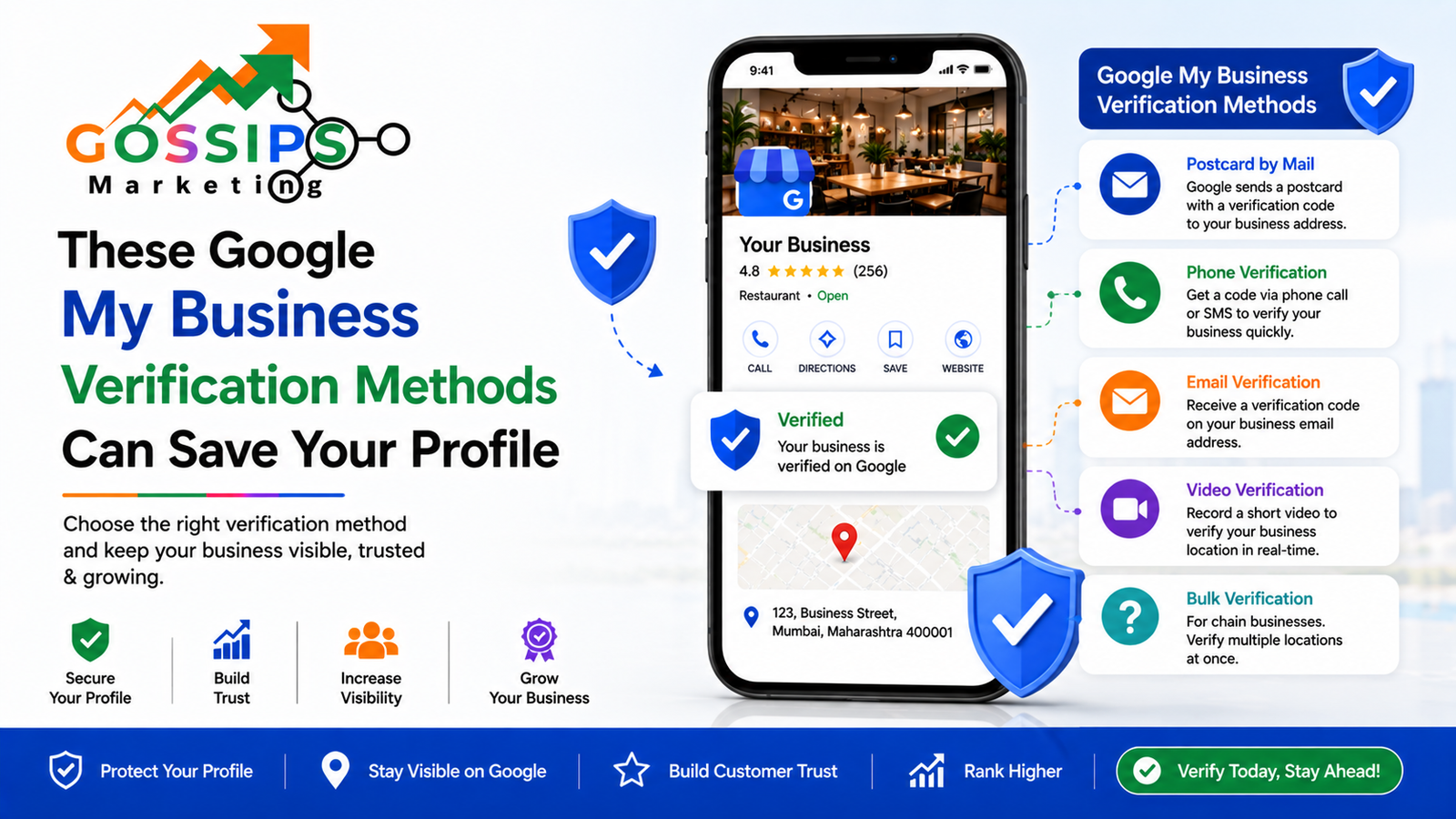
You’re running a genuine, legal business. Customers love you, work is going on smoothly, but for Google you’re still just “another listing request” until you prove you are real. That’s why Google My Business (now called Google Business Profile) asks for verification before your profile shows fully in Maps and local search. These verifications are not to trouble you – they’re to filter spam, fake locations, and scammers so that real businesses like yours stand out.
Why Google Verification Matters for Your Business
When you complete Google My Business verification, you’re basically telling Google: “Yes, this is our real shop/office/service area, and we are the right people managing this business.”
A verified profile helps your business:
- Show properly on Google Maps and in the local 3‑pack for relevant searches.
- Build trust with customers who check your address, phone, photos, and reviews before calling.
- Reduce chances of suspension due to mismatch, spam signals, or suspicious activity.
From 2025–2026, Google has become much stricter and relies heavily on video and real‑world proof before approving or re‑verifying profiles.
Types of Verification in Google Business Profile
Google automatically decides which verification method you see based on business type, location, trust level, and past history – you can’t always choose your favorite option.
1. Video Verification (Most Common in 2025–2026)
Right now, video verification is the number one method for new Google Business Profiles and many re‑verifications.
In this method, you record a continuous video (usually 30–60 seconds) from the Google Maps or Business Profile app showing things like:
- Outside view and nearby street or landmark
- Signboard or branding
- Office/store entrance and interior
- Business tools, setup, or equipment
- Access to staff‑only or restricted areas
For service‑area businesses (like plumbers, cleaning, solar, etc.), Google may ask you to show:
- Branded vehicle
- Work tools and equipment
- Documents related to the business
- Real workspace or storage area used for business
If any key element is missing, the video can be rejected and you may need to re‑submit.
2. Live Video Call Verification
Sometimes, Google support does a live video call instead of a recorded video.
On this call, a Google representative asks you to show:
- Storefront and street signage
- Inside workspace
- Equipment or tools
- Staff‑only or restricted areas to prove you manage the place
This method is often used when:
- Your video upload fails multiple times
- Re‑verification is required after major edits
- Your business falls into a high‑risk category (for example, financial or legal services).
3. Phone Verification
For selected trusted businesses, Google may allow phone verification.
You receive a verification code through:
- Automated voice call, or
- SMS text message
You then enter this verification code inside your Google Business Profile dashboard to complete verification.
Conditions:
- Phone number must be active and reachable.
- The number should match what is shown on your profile and ideally on your website and other listings.
- IVR systems sometimes cause issues, so a direct line is better.
4. Email Verification
In some cases, Google sends a verification code to your official business email address.
Usually this is allowed when:
- Your email domain matches your website (like info@businessname.com).
- Your website already has good authority and clean signals.
Again, you receive the code in email and enter it in the Business Profile interface to complete verification.
5. Postcard / Mail Verification
Postcard verification is still used, but much less than before.
How it works:
- Google sends a postcard with a 5–6 digit verification code to your business address.
- Postcard usually arrives in 5–14 days, depending on region.
- You must enter the code in your profile before it expires (typically within 30 days).
Very important: do not edit your business name, address, or primary category while you are waiting for the postcard or before entering the code, or the process can reset.
>>Get Your Digital Marketing Certification from Gossips Marketing
6. Instant Verification
Some lucky businesses get instant verification.
This usually happens when:
- Your website is already verified in Google Search Console.
- Your business has strong trust signals and consistent information across the web.
- Google’s existing data perfectly matches your profile details.
Not every business will see this option – it’s a privilege for well‑established brands or websites.
7. Bulk Verification
If you manage multiple locations of the same brand (e.g., franchise or chain), bulk verification saves a lot of time.
Bulk verification is generally available when:
- You have 10 or more locations of the same business.
- All locations share the same name and primary category.
- You manage them in one location group in Business Profile Manager.
Google may ask for extra documentation such as business licenses, proof of centralized management, and consistent NAP (Name, Address, Phone) details across locations.
What Google Checks During Verification
Behind the scenes, Google is checking how trustworthy and consistent your business looks online. Key things include:
- Consistent NAP (Name, Address, Phone) across website and local listings
- Real physical presence (not virtual offices or random apartments)
- Website authority and content quality
- Local citations from other directories
- Branded assets like signage, vehicles, and documents
- Customer trust signals: reviews, photos, and profile activity
Even if your profile is verified, poor optimization or weak authority can still limit your visibility. Verification is the entry gate, not the final goal.
Common Reasons Verification Gets Rejected
If your Google My Business verification fails, it’s usually because something didn’t match or didn’t look genuine. Typical reasons include:
- Fake, virtual, or co‑working address used as “office”
- No proper website or very low‑quality site
- Inconsistent phone numbers or addresses across the web
- Weak video proof (not showing signage, tools, or control)
- Editing business details while verification is in progress
- Keyword stuffing in the business name (e.g., “ABC Dental Best Cheap Dentist Jaipur”)
- Duplicate listings for the same address
- No branding visible outside your office or shop
Fixing these issues first makes your next verification attempt easier and faster.
Current Trends in 2026
In 2026, Google has clearly moved in one direction: real‑world proof.
The main trends:
- Video verification is the default method for most new profiles and address changes.
- Strong anti‑spam systems and AI reviews to remove fake locations.
- More re‑verification when you edit business name, category, or address.
- Higher weight on trust signals like consistent NAP, reviews, and website authority.
If you play fair, keep everything consistent, and show real‑world proof, you are on the safer side of these updates.
How Gossips Marketing Experts Can Manage Your GMB Properly?
Managing a Google Business Profile is not just about verification – it’s about ongoing optimization. This is where a team like Gossips Marketing can step in and handle the full setup, verification, and growth strategy for you.
10 Common Issues We Fix in Google My Business Profiles
We regularly see these problems hurting rankings and conversions:
- Wrong or inconsistent business name across web listings
- Incorrect or incomplete address and map pin
- Phone number mismatches or using personal numbers instead of business numbers
- Wrong primary category or missing secondary categories
- Empty description or keyword‑stuffed, spammy text
- No photos, poor‑quality photos, or stock images only
- Missing services/products and no price hints
- Few or no reviews, or no reply to existing reviews
- Incomplete business hours or holiday hours
- Duplicate or old profiles still live for the same business
Fixing these 10 issues alone can dramatically improve your visibility and trust in local search.
Growth Hacks for Your Google My Business Profile
Once your verification is done, growth starts:
- Regular Posting: Publish weekly offers, updates, events, and FAQs as Google Posts to keep your profile “fresh” in Google’s eyes.
- NAP Citation Building: Create consistent listings for your business on relevant directories, local portals, and industry sites so Google keeps seeing the same Name, Address, and Phone everywhere.
- Photo & Video Content: Upload real photos of your team, office, work before‑after, and short clips to show activity and authenticity.
- Review Strategy: Ask happy customers to leave honest reviews and always respond politely – even to negative ones.
- Service & Product Optimization: Add all your key services with descriptions and, where possible, price ranges or starting prices.
These actions send strong authority signals and support your verified profile to rank higher.
Process of Mobile Number Verification
Many owners are confused about phone verification, so here’s the simple flow (when Google offers it):
- Log in to your Google Business Profile.
- Select your location and click “Get verified” or “Verify now.”
- If “Phone” or “SMS” appears, choose it.
- Confirm the displayed mobile number is correct and active.
- Receive the verification code via call or SMS.
- Enter the verification code in the same screen and submit.
If you don’t see phone verification, it simply means Google hasn’t enabled that option for your profile – you’ll have to use video, postcard, or whatever is offered.
FAQs on Google My Business Verification
1. How to get Google My Business verification code?
You get the code through the method Google offers – phone, SMS, email, postcard, or inside the video verification flow. After you click “Verify now” in your Business Profile, Google shows available options, and your code is sent based on what you select.
2. Where do I enter my Google Business verification code?
Sign in to your Google Business Profile, open the location, and you’ll see a verification prompt. There you can enter the code you received via phone, SMS, email, or postcard and submit it to complete verification.
3. Where do I enter my verification code for Google Business if I missed the screen?
If you closed the window earlier, just log in again, select your business, and look for any “Verify” or “Enter code” banner at the top of the profile dashboard. Google usually keeps the verification flow active until the code expires.
4. How to bypass Google My Business verification?
Honestly, you shouldn’t try to bypass verification. Any trick, fake address, or grey‑hat method may get your profile suspended, your reviews wiped, or your account flagged. The safest and long‑term approach is to meet Google’s requirements and provide clear video/phone/postcard proof.
5. What is bulk verification in Google My Business?
Bulk verification is for brands with 10+ locations of the same business, managed under one account. Once Google approves your bulk verification request, you can verify many locations at once instead of going through postcard or video for each location.
6. What is a Google My Business verification postcard?
It’s a physical postcard sent by Google to your business address. It contains a code you must enter in your profile within the expiry period (usually around 30 days). It’s slower than phone or video, but still used in some regions and categories.
7. Can I run Google Ads without verifying my business profile?
Yes, you can run Google Ads using your website URL even if your Google Business Profile is not verified. However, without a verified profile, you miss out on local map visibility and certain ad formats that rely on location extensions and strong local presence.
If managing all this – video proof, codes, NAP, citations, posts, and reviews – feels overwhelming, you don’t have to do it alone. A structured Google My Business verification and optimization process with an agency like Gossips Marketing can turn your profile from “just verified” into a consistent lead‑generation asset for your business.